Voicent Agent Dialer is a state-of-the-art predictive dialer that you can rely on for your telemarketing campaigns. Besides many traditional predictive dialing features, the tool offers the following key improvements:
 VOIP Predictive Dialing--No need for physical phone lines, Dialogic board or voice modem.
Calls are made through Internet VoIP.
VOIP Predictive Dialing--No need for physical phone lines, Dialogic board or voice modem.
Calls are made through Internet VoIP.
Remote Agent--Agent can work at home or office. Calls are forwarded to agent's computer
over the internet or local area network.
The rest of this article covers:
There are several ways to make a call list in Voicent Predictive Dialer Software. The first, and possibly easiest way, is to import a CSV file. Once you've followed the directions in the previous link, you can create a Predictive Dialer Campaign, and during Step 1 ("Select Contacts List") you can select the file you imported from YourFileName.csv
Another way to create a call list is to save a search (or advanced search) profile. Search profiles can find customers/leads through metrics like their position in the sales pipeline, making them extremely good for targeted sales outreach.
The third and final way to make call lists is to save campaign results as a call list. This approach allows you to quickly filter and save the call list used in a previous campaign for follow ups.
There are three main steps to running your first predictive dialer campaign. If you have not done so already, first look over the predictive dialer setup page, and then the Remote Agent Setup page. Once you've completed the Predictive Dialer setup, you can run your first Predictive Dialer Campaign.
Step 1: Select Your Contact List. Your contact list can be any of the options list above.
Step 2: Select Your Agents. This portion of the campaign preparation involves selecting the Agents you want to be active for this campaign.
Step 3: Select Your Campaign Options. At this step you will select any dispositions you wish to use, default or custom, as well as any campaign scripts you may have prepared.
Voicent AgentDialer also supports semi-automatic dialing. Using the Power Dialing mode, an agent can initiate individual phone calls, play a pre-recorded audio file, record the conversation, and transfer the call to another agent, all with a single mouse click.
To start Power Dialing, open up your Agent Dashboard. Once you have done so, navigate to the Contacts tab. You will see a purple button thats says "Power Dialing" as seen below.
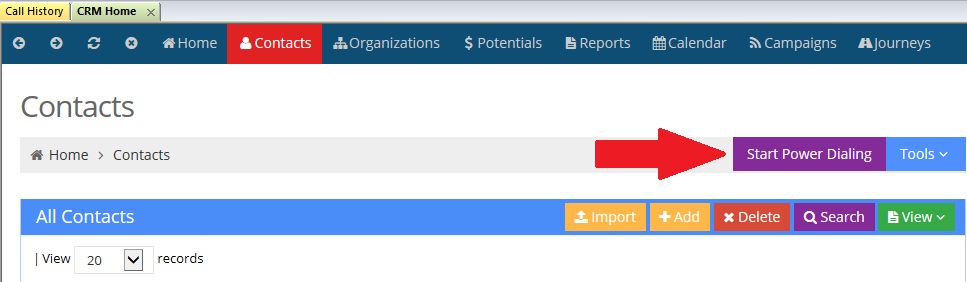
You will be given two options after pressing this.
1)Phone Selection Order This will determine in what order the CRM phone fields will be chosen when attempting to reach the specified CRM record.
2)Preview Time This setting provides the Agent with a specified amount of time to preview the CRM record and gather any necessary information
before dialing the CRM record's number.