
Advantages of Voicent's
IVR Studio
- One time purchase, use forever
- No monthly fee, no contract
- Setup in less than 10 minutes
- Works on any PC
- Feature rich and yet easy to use
- You can try it before you buy it
Learn More
What is IVR?
IVR - short for Interactive Voice Response - automates interaction with telephone callers. Most people are familiar with IVR applications. These applications allow users to retrieve information such as bank balances, flight schedules, and movie show times from any telephone and without the help of a live operator.
What is Inbound, Outbound IVR?
Most IVR systems are for inbound applications. Voicent IVR solution also supports outbound applications, such as BroadcastByPhone autodialer.
How is Voicent's IVR different?
Traditional IVR systems use proprietary software and expensive telephony hardware. Voicent IVR system is based on VoiceXML, an Internet open standard, so it is easy to integrate with other software applications. It can be deployed on any PC with a voice modem, an off-the-shelf standard computer component. That makes the cost of having your own IVR system extremely low.
How do you integrate IVR with existing systems?
Voicent's IVR platform supports two integration methods--HTTP and Java. With HTTP, an Internet protocol for the World Wide Web, the system can easily connect to any website. For other applications, any program written in Java can be easily integrated using Voicent's IVR software.
Why should I integrate my phone and CRM systems?
Integrating a CRM (Customer Relationship Management) system enables agents to quickly gain access to customer information on inbound and outbound calls, increasing operational efficiency and providing an improved customer experience. For example, with Voicent TelephonyCRM, all calls with caller ID are automatically saved. When a customer calls back, a screen popup with customer profile and call history is displayed on an agent's computer. Based on the customer's category, it can further direct which IVR application to use to answer the call, meaning the call can be automatically transferred to a specific person or department.
What can I do with IVR & Text-to-Speech capabilities?
A flexible IVR system can deliver dynamically generated content, such as account balances, when interacting with callers. The information is relayed to the caller by using a Text-To-Speech (TTS) engine, which reads aloud text in specified data fields.
IVR Samples
You could print out information during any part of the call flow. For example, you can print out the current value of a variable, last caller entered keys, and any other information specific for your application.
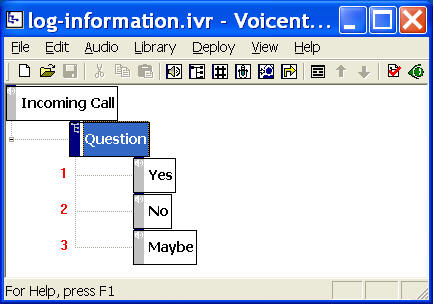
In this sample, the system logs caller's answer to a question..
You can open this design by selecting Library > Log Information from the program main menu.
The Call Flow
The call flow consists of choice element (Question) and prompt elements (Yes, No, Maybe).
The Log Action
An action is used to "do something", such as print out some information, change the variable value, run a Java command, and run an HTTP command. Sample Password Protected Info contains the Set Variable action. In this sample, we use the Log Action. An Log action simply prints out some information to the application log file.
To define a new action for an element, select the element, then click on the Properties button on the toolbar (Or select Edit > Properties... from the program main menu), choose the Action tab. Click the New... button.
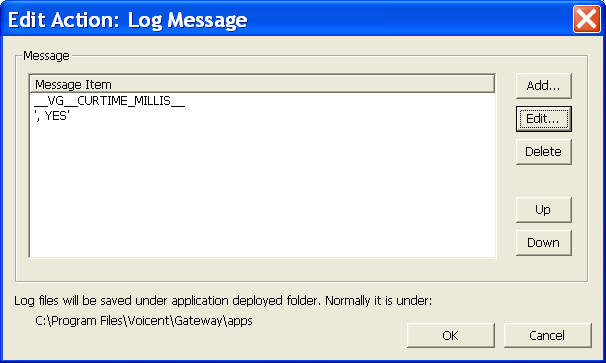
You could choose to print out any text string and any variable value. For example, __VG_CURTIME_MILLIS__ is a system variable containing information about the current time in milliseconds; and ', YES' is an literal text string.
Action Execution Time
All actions of an element are executed immediately when the call flow is transitioned to the element. For example, when a caller pressed 1 for Yes and the call flow is transitioned to Yes element, the Log action defined here is executed before the element prompt message is played back.
If there are more than one action defined, the actions are executed in the same order as defined the action list.
Deployment
You can use the sample application as is. To deploy the application, select Deploy > Submit to Gateway... from the program main menu. If the menu item is grayed out, select Validate... first.
If you have multiple IVR application deployed, please see IVR select application for more information.
Once deployed, restart the gateway to have the changes to take effect.
The log file is saved under your deployed application folder, normally it is:
C:\Program Files\Voicent\Gateway\apps\<your app name>\logs
© Copyright 2002 - 2012, Voicent Communications, Inc.
