
IVR Studio: Inbound IVR
This sample allows a caller to retrieve information only after a correct password is entered. It also shows how to utilize variables to control the call flow
This sample does not use a database to keep the user name and password info. However, this can be easily extended using the built-in database action.
You can open this design by selecting Library > Password Protected Info from the program main menu.
The Call Flow
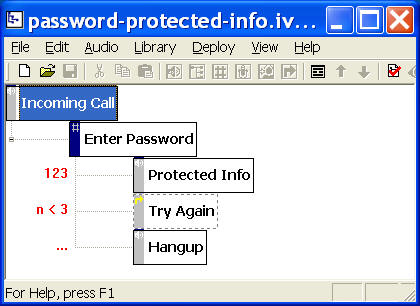
The call flow consists of one Digits Element, one Go-to Element, and two Prompt Elements. A digits element (Enter Password Element in the call flow) sets the system ready to accept caller touch tone input, which must be ended with a pound (#) key. A go-to element (Try Again Element) can jump to any other element in the call flow diagram. A Prompt Element plays the prompts defined in the element property.
Define and Use Variable
A variable is used to hold dynamic information. In this example, variable n represents the number of attempts a caller has made.
To define a new variable, select the root element (Incoming Call), then click on the Properties button on the toolbar (Or select Edit > Properties... from the program main menu), choose the Variable tab. Click the New... button.
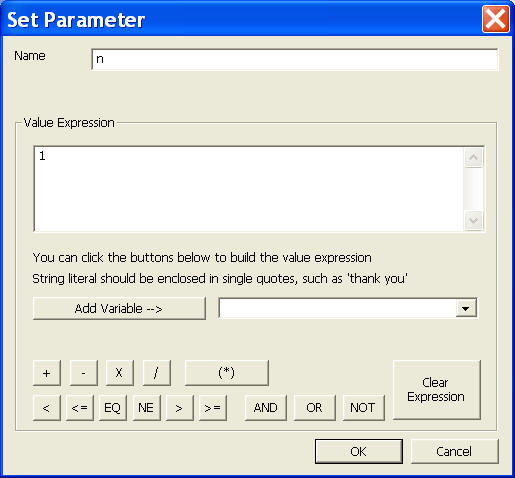
If you are new to IVR Studio, you can use the buttons to build a value expression. In this example, you enter n as the name and 1 as the value expression. For values other than number, such as a street name, please enclose the string with single quotes, such as '123 Main Street'. Without the single quotes, it will be treated as a variable.
Conditional Transition
After a caller entered the password (Enter Password Element), the system checks the input. If the input is "123", then the caller has entered the correct password and it is transitioned to element Protected Info, where a secret message will be played to the caller. If the password entered is wrong, and the caller has made less then 3 attempts (n < 3), then it is transitioned to the Try Again Element.
The value of variable n is changed in the Try Again Element. Here, n is set to n + 1, which represents one more attempt for password. To set new value for a variable, select the element property sheet, select the Action tab, then click the New... button.
If the caller has made more than 3 attempts on password, the system transitions to the Hang up element, where it simply disconnect the call.
The transition is defined in the element property sheet under the General tab.
Deployment
You can use the sample application as is. To deploy the application, select Deploy > Submit to Gateway... from the program main menu. If the menu item is grayed out, select Validate... first.
If you have multiple IVR application deployed, please see IVR select application for more information.
Once deployed, restart the gateway to have the changes to take effect.
You can use this sample as part of your IVR application where you need to have password protected info.