IVR Studio: Learn More
If you have multiple IVR application deployed, you can select which IVR application to use based on the time of day.
Setup IVR Application Based On Call Time
You can select a weekend or after hour IVR application in addition to a regular working hour IVR application. To invoke the setup dialog window, select Setup > Options from Voicent Gateway main menu, then choose the Inbound tab, click the button labeled "Setup IVR Application for Incoming Call".

You can define two groups based on the day of week. For example, you can set group 1 to be weekdays and group 2 to be weekend. In each group, you can have a work hour IVR application (group 1, music on hold) and an after hour application (voicemail 1). You can also choose "Do Not Answer", in which case no IVR application will answer the call.
Remove Deployed Application
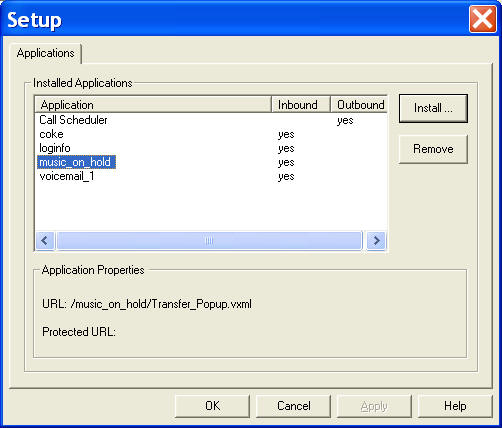
To remove deployed application, please select Application > Setup Application... from the gateway main menu. Select the application to remove, then click the Remove button.
If you want to remove data files also, such as logs files, recording files, and original recorded audio files for your application, please go to the deployment folder to delete them manually. The deployment folder is usually under:
C:\Program Files\Voicent\Gateway\apps